How to Design a Mobile Website: Step-by-Step Responsive Strategies
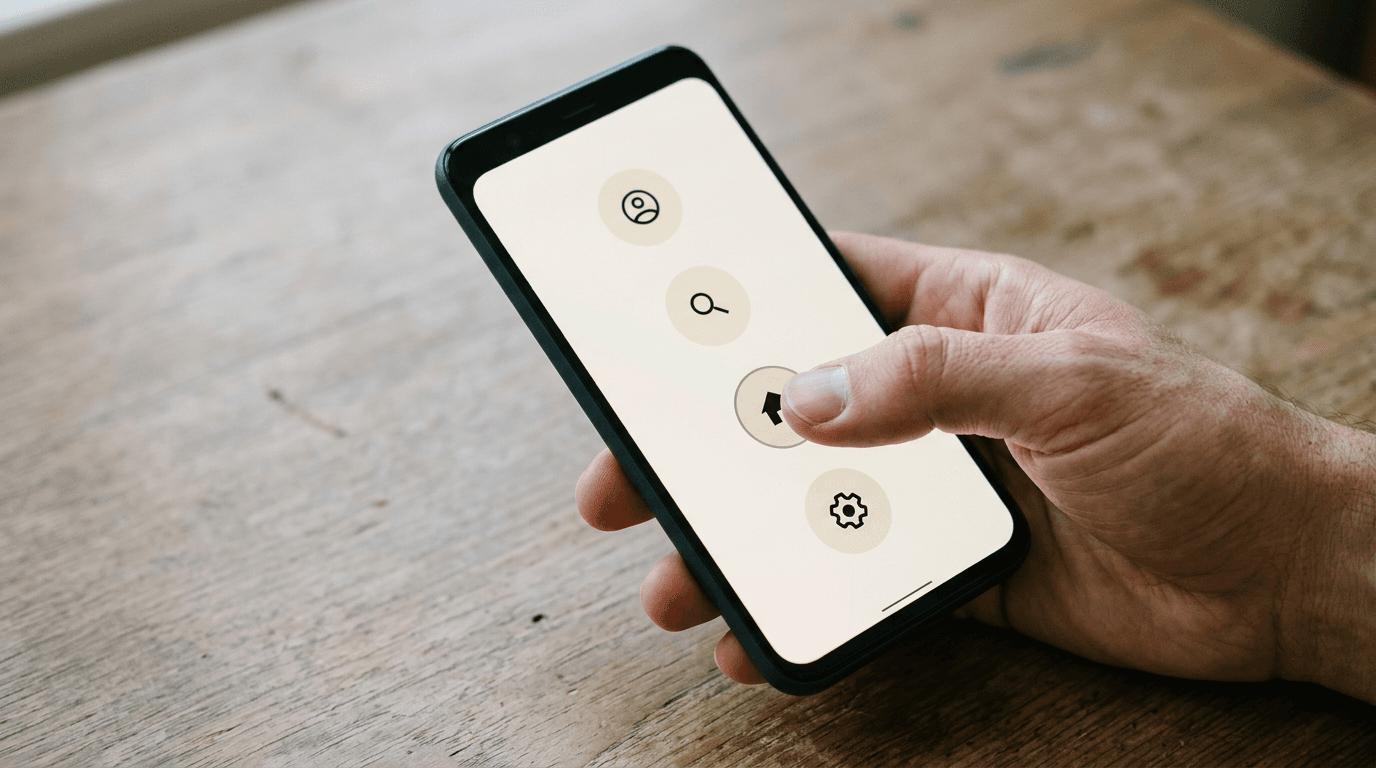
A user interacting with a desktop monitor has a mouse, a physical keyboard, and over a thousand pixels of horizontal space. A mobile user navigates with a single thumb on a glass rectangle while walking. When you design a mobile website, treating the smaller screen as a miniature version of the desktop layout fundamentally misunderstands how people interact with the device. Mobile environments require specific architectural decisions, touch-optimized interfaces, and strict bandwidth management.
Quick Summary
Designing a mobile-first website requires restructuring your layout, optimizing assets for cellular networks, and prioritizing touch interactions over pointer precision. Rather than shrinking desktop assets, effective mobile design rebuilds the interface around the physical constraints of handheld devices.
- Fluid grid systems adapt layouts dynamically to varying screen dimensions.
- Touch targets require a minimum spatial footprint to prevent input errors.
- Asset optimization reduces layout shifts and load times on restricted networks.
- Mobile navigation patterns must expose high-priority actions without relying on complex dropdowns.
Table of Contents
- 1. Establish a Fluid Grid Architecture
- 2. Restructure the Mobile Homepage Design
- 3. Scale Touch Targets for Thumbs
- 4. Optimize Asset Delivery and Formatting
- 5. Adapt Input Fields for Virtual Keyboards
- Common Pitfalls & Troubleshooting
- FAQ
- Recommended Reads
1. Establish a Fluid Grid Architecture
The foundation of any responsive layout is a fluid grid that uses relative units rather than absolute pixels. When developers design a website for mobile devices using hardcoded pixel widths, the layout inevitably breaks when rendered on a device with an unexpected viewport dimension. Instead, structural elements must rely on percentages, viewport widths, and CSS grid or flexbox properties that allow content to reflow organically.
The mechanics rely on CSS media queries to apply different styling rules at specific breakpoints. However, the correct approach is mobile-first: write the default CSS for the smallest screen, then use min-width media queries to add complexity as the screen expands. This prevents mobile browsers from parsing complex desktop styling rules only to overwrite them milliseconds later.
The specific mistake developers make here is setting a container to width: 100vw without accounting for the mobile browser's default scrollbar, which causes unintended horizontal scrolling. The fix is applying width: 100% alongside box-sizing: border-box, ensuring padding and borders are calculated within the element's total width.
2. Restructure the Mobile Homepage Design
A mobile homepage design carries a different burden than its desktop counterpart. On a monitor, a homepage can serve as a broad dashboard presenting multiple navigation paths simultaneously. On mobile, the vertical orientation forces sequential reading. This requires ruthless prioritization of the content hierarchy, pushing primary conversion actions to the top of the viewport and collapsing secondary information into logical, accessible structures.
Mechanically, this involves hiding complex horizontal navigation bars and replacing them with off-canvas menus or bottom tab bars. Essential elements, such as a product search bar or a shopping cart, must remain outside the hidden menu to reduce the interaction cost for the user. When you approach website design on mobile screens, vertical space is your primary currency.
The most common failure in mobile homepage execution is the "mystery meat" hamburger menu. Designers often sweep every navigation link into a single toggle icon without providing text labels or visual hierarchy within the expanded menu. Users looking for a specific category abandon the session rather than hunting through unorganized, deeply nested lists. Always expose the top two or three user destinations directly on the homepage, reserving the toggle menu for secondary pages.
3. Scale Touch Targets for Thumbs
Cursor precision allows desktop users to click text links barely a few pixels tall. Mobile users rely on thumbs, which have a broad, imprecise contact area. Designing web for mobile requires sizing interactive elements to match human anatomy, preventing users from accidentally triggering the wrong action.

According to accessibility guidelines, the minimum physical size for a standalone touch target is 48 by 48 CSS pixels. This measurement ensures the user's thumb does not obscure adjacent actionable elements. When elements like pagination numbers, text links, or icon buttons are packed tightly together, the mobile browser often struggles to determine which element the user intended to tap, leading to frustration and exit.
Practical rule: If a user has to pinch-to-zoom to confidently tap a button, the interface has failed the touch target requirement.
The named mistake in this step is placing a destructive action, like "Clear Cart" or "Delete Account," immediately adjacent to a primary conversion button, like "Checkout." A slight thumb misalignment results in catastrophic data loss for the user. Always separate destructive actions spatially and visually, and introduce a confirmation state for any irreversible action on mobile phone website design layouts.
4. Optimize Asset Delivery and Formatting
Mobile devices frequently operate on cellular networks that suffer from high latency and variable bandwidth. Sending desktop-optimized assets to a mobile device consumes the user's data plan and drastically delays the moment the page becomes interactive. Asset optimization is a structural requirement for web design for mobile interfaces.
The mechanics involve responsive image syntax. Using the HTML <picture> element or srcset attributes allows the browser to request an image file scaled specifically for the device's resolution and viewport. A user on a low-resolution screen receives a 50KB file, while a high-density retina display requests the 150KB version. Implementing modern image formats like WebP or AVIF further compresses the visual data without introducing artifacting.
The widespread error designers commit is resizing massive images via CSS. Serving a 4000-pixel wide hero image and applying max-width: 100% makes the image fit the screen visually, but the mobile browser still downloads the entire 3MB file. This blocks the main thread, delays font loading, and triggers massive layout shifts. You must deliver appropriately scaled files at the server level, not merely squash them in the browser.
5. Adapt Input Fields for Virtual Keyboards
Typing on a glass screen is inherently error-prone. Forms are the highest friction point in any mobile layout. When you design website for mobile forms, the goal is to minimize manual data entry and leverage the device's native capabilities to assist the user.
Mechanically, this means assigning the correct type attributes to HTML input fields. Setting <input type="tel"> invokes the numeric keypad immediately, saving the user the effort of switching keyboard modes manually. Using type="email" ensures the "@" symbol and ".com" shortcuts appear on the default keyboard view. Additionally, leveraging autocomplete attributes allows the browser to securely inject saved addresses and payment details, turning a two-minute typing exercise into a single biometric authentication.
The critical mistake developers make regarding mobile forms is disabling user zoom to control the visual aesthetic. Adding user-scalable=no to the viewport meta tag prevents users with visual impairments from magnifying the text. If your input text size is smaller than 16 pixels, iOS browsers will automatically zoom in when the field is focused, breaking your carefully crafted layout. The fix is ensuring base font sizes in forms are at least 16 pixels, removing the need for the browser to force an intervention.
Common Pitfalls & Troubleshooting
Mobile interfaces fail in predictable ways. Recognizing the symptom allows you to apply the correct technical fix without rewriting the entire layout.
Unclickable Buttons Below the Fold
- Symptom: Buttons or links in the lower half of the screen register no interaction when tapped, though they appear visually normal.
- Diagnosis: A transparent container, often an invisible modal overlay or an improperly cleared float, is sitting on top of the interactive elements in the z-index stack.
- Fix: Inspect the layer stack and apply
pointer-events: noneto the invisible overlay, or correct the z-index hierarchy so actionable elements remain on the top layer.
Horizontal Scrolling on Text Pages
- Symptom: The user can swipe left and right, exposing a margin of white space next to the main content container.
- Diagnosis: A long, unbroken string of text - typically a raw URL or a complex technical term - is forcing its container to expand beyond the viewport width.
- Fix: Apply
word-wrap: break-word;oroverflow-wrap: break-word;to the typography CSS to force the unbroken string onto the next line.
Cumulative Layout Shift After Load
- Symptom: The user attempts to tap a link just as the page finishes loading, but the layout jumps, causing them to click an advertisement or the wrong navigation item. This is the most frequent cause of mobile user frustration.
- Diagnosis: Images or advertising iframes are loading without explicitly defined
widthandheightattributes in the HTML. - Fix: Always define aspect ratios or explicit dimensions for media elements so the browser can reserve the necessary vertical space before the asset fully downloads.
FAQ
Does a mobile site need a separate domain?
No. Maintaining a separate "m.domain.com" requires duplicating content and complicates search engine indexing. A single responsive domain that adapts its layout via CSS is the established industry standard.
Why do custom web fonts look different on mobile devices?
Mobile operating systems render typography using different anti-aliasing engines than desktop computers. Additionally, if the custom font file fails to load quickly on a slow connection, the browser will swap to a fallback system font, drastically altering the line heights and paragraph blocks.
How much vertical space is optimal for a mobile hero section?
Avoid locking hero sections to exactly 100vh (viewport height), as mobile browsers feature dynamic address bars that shrink and expand, causing the layout to jump. Use CSS relative units like svh (small viewport height) to maintain stability.
Should hover states be converted to tap interactions?
Not directly. Mobile devices cannot detect a hover. Converting a desktop hover-to-reveal menu into a tap-to-reveal menu often traps the user, preventing them from accessing the top-level link itself. Restructure the navigation to separate the parent link from the sub-menu toggle.